Shop and products
Stock, lots and transfers
Receive stock with lot numbers and expiry dates, see a product's lots, write off a lot, adjust stock, and send or request stock between branches
On this page
Stock in#
Stock In
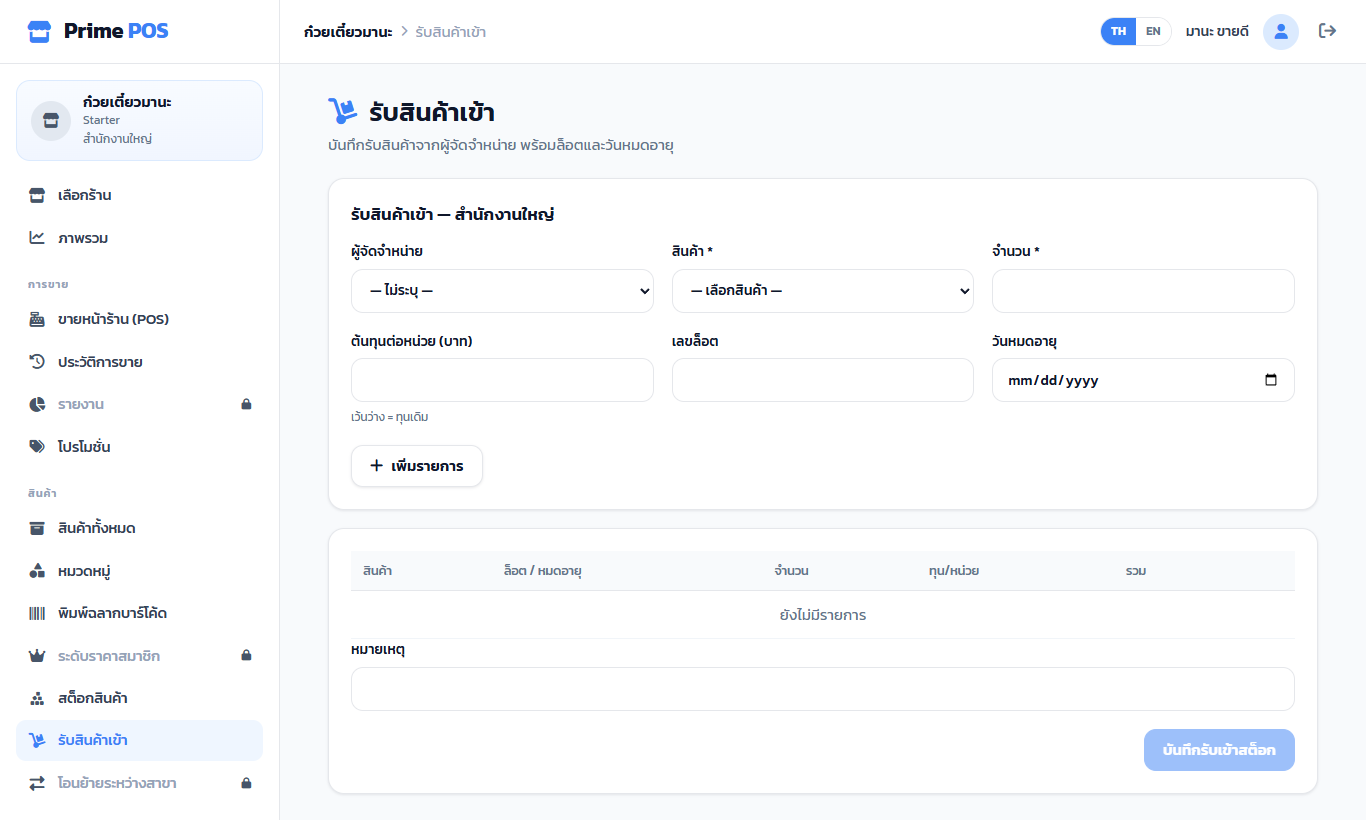
- Choose the supplier (optional — add them under Suppliers).
- Choose a product, enter the quantity, and if you have them the unit cost (empty = the current cost), lot number and expiry date.
- Press Add item; repeat for the whole delivery.
- Press Save stock in.
Every delivery becomes a lot. Sales take from the lot that expires first (FEFO) automatically.
Inventory and lots#
Inventory shows what each product has in this branch — red = out, yellow = low.
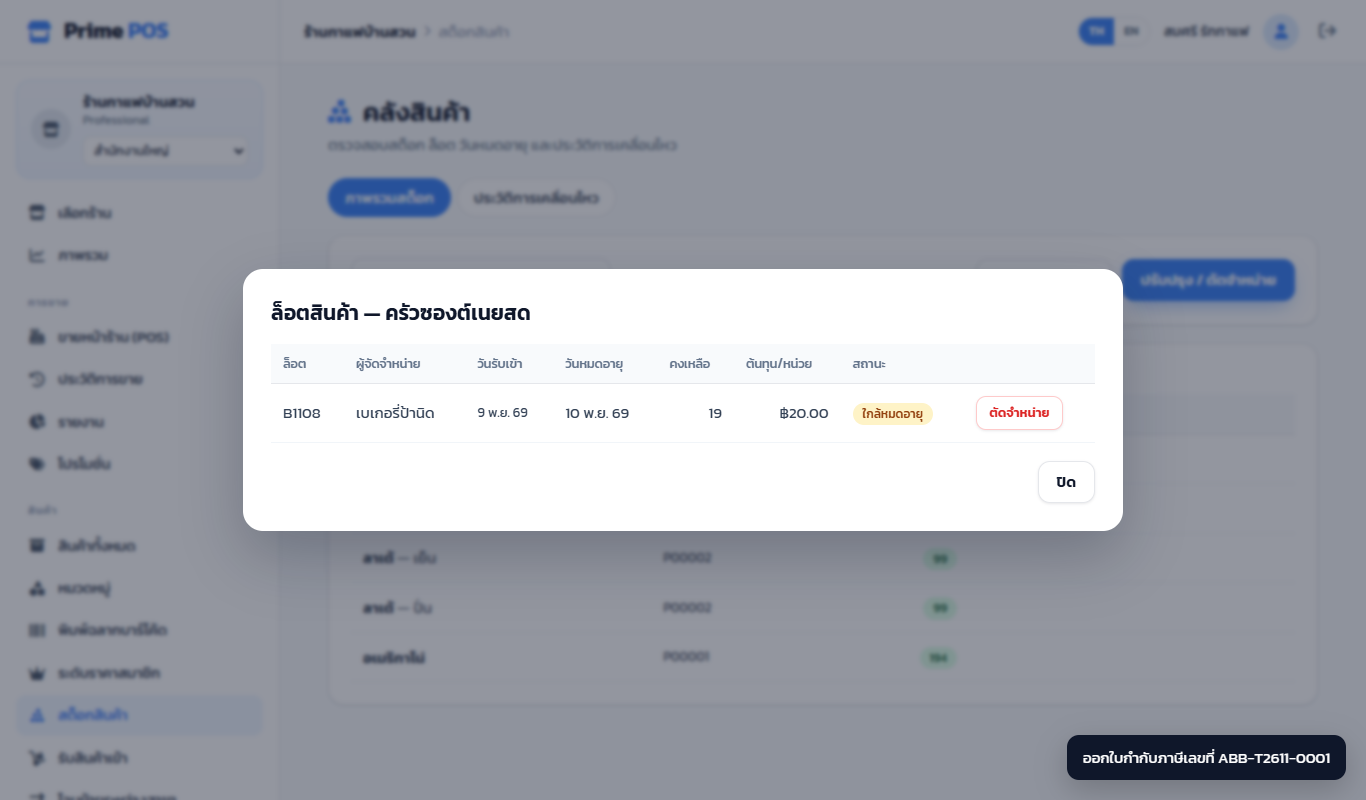
Tap a product to see its lots: lot number, supplier, received, expiry, on hand, cost and state (expiring soon within 30 days / expired).
Write off one lot#
In the lots window press Write off on the lot, enter the quantity and the reason (expired / damaged / lost / other) and confirm — at most what that lot has.
Write-offs (damaged, lost, expired) are subtracted as stock loss in the Profit & loss report.
Adjust stock#
Adjust / write off on the inventory page corrects stock after a count, or adds/removes without a delivery; a reason is always needed. Movement history lists every change — sales, stock in, adjustments, transfers and returns — with who did it.
Transfers between branches#
Needs a package with several branches and at least two branches.
Owners and managers (all branches)#
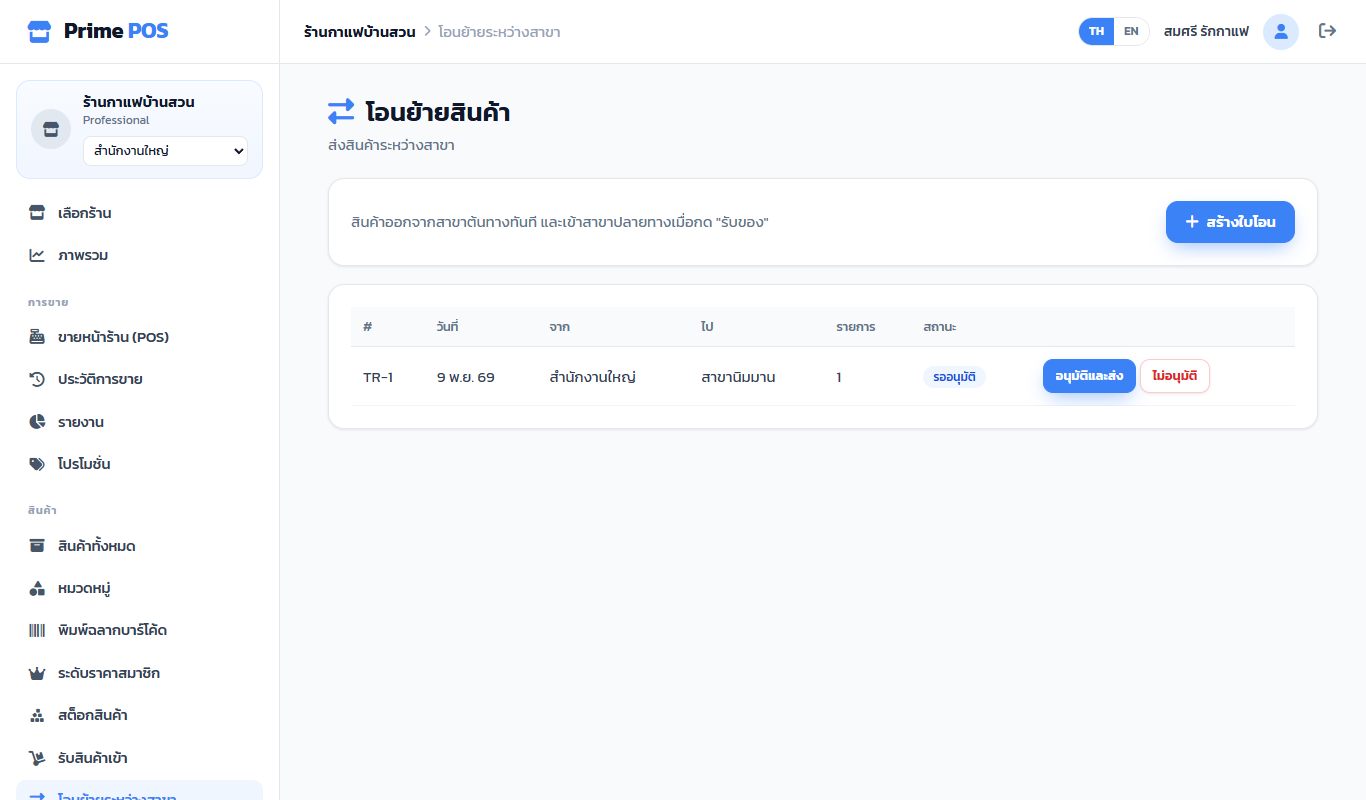
Transfers → Create transfer: from, to, date and products, then Send. Stock leaves the source now; the destination presses Receive when it arrives (before that, Cancel returns it).
Staff tied to one branch: request stock#
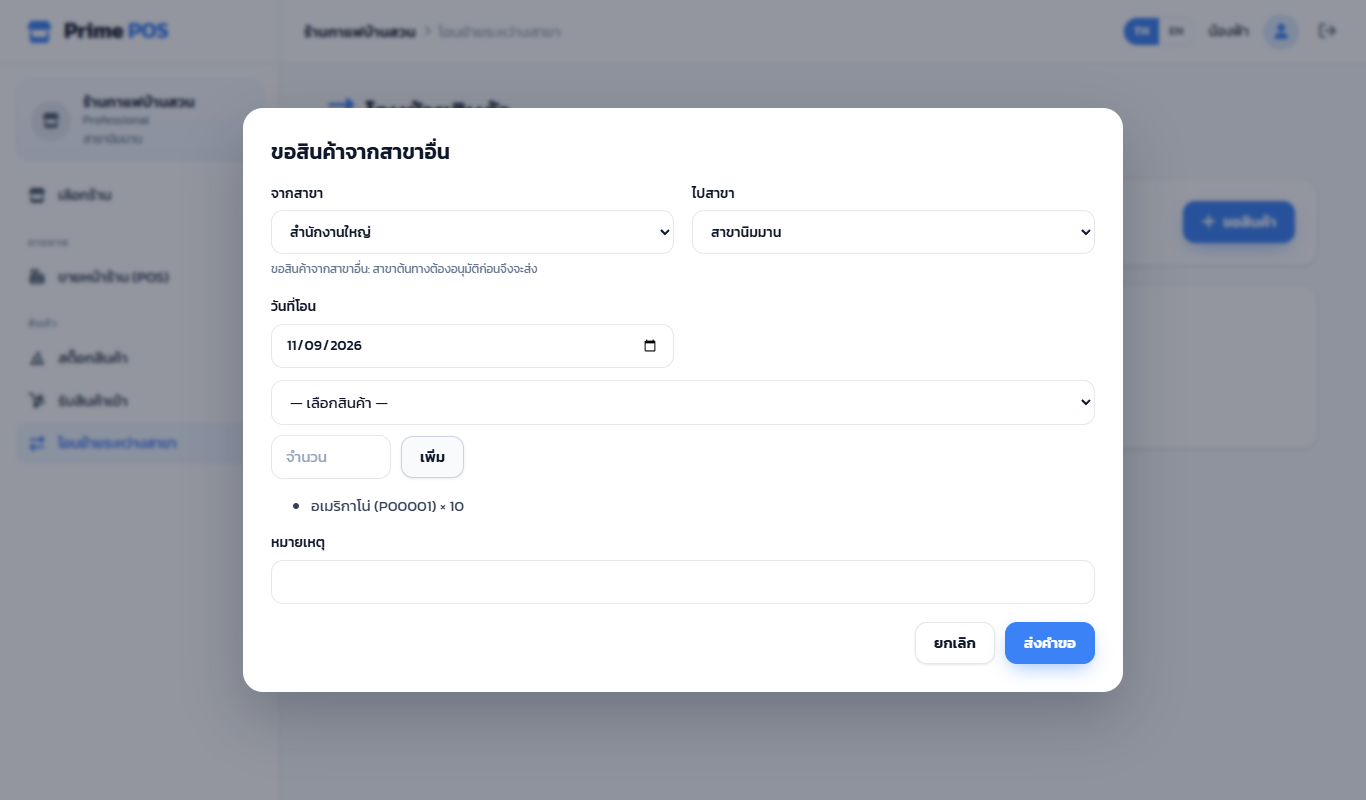
The button reads Request stock — choose the branch to ask, the products and quantities, then Send request. It shows as Awaiting approval.
The source branch sees Approve and send (the stock leaves then) or Reject (with a reason). The asking branch presses Receive when it arrives.
| State | Meaning |
|---|---|
| Awaiting approval | Nobody has approved yet; stock unchanged |
| Pending receipt | Sent, on its way |
| Received | In the destination's stock |
| Rejected / Cancelled | Closed, nothing moved |