
Getting started
Getting started with PrimePOS
Sign up, open your first shop, find your way around the dashboard and the menu, switch the language, and manage your account (name, password, forgotten password)
On this page
PrimePOS is a point of sale that runs in the browser — nothing to install. It works on computers, tablets and phones: sell, keep stock, print receipts, read reports and run several branches from one place.
Open it at prime.anasaki.live.
Sign up and sign in#
- On the home page, press เริ่มใช้ฟรี (Start free).
- Enter your name, e-mail and a password (8+ characters), then Create account.
- The screen says Check your e-mail — press Confirm email in the mail — you are signed in and taken into the app (not there in a few minutes? check the spam folder, or press Send the link again).
- Sign in with your e-mail and password — you land in the POS app.
Staff the shop adds (see Staff, roles, branches and tills) sign up the same way and see their shop right away.
Open your first shop#
The first screen asks about the shop — its name, a contact phone (for the team to reach you, also printed on receipts) and the type of business (optional) — then Create shop. A new shop starts on the Starter (free) package with one branch, Head office.
One account can own several shops; switch with Select shop in the menu.
The dashboard#
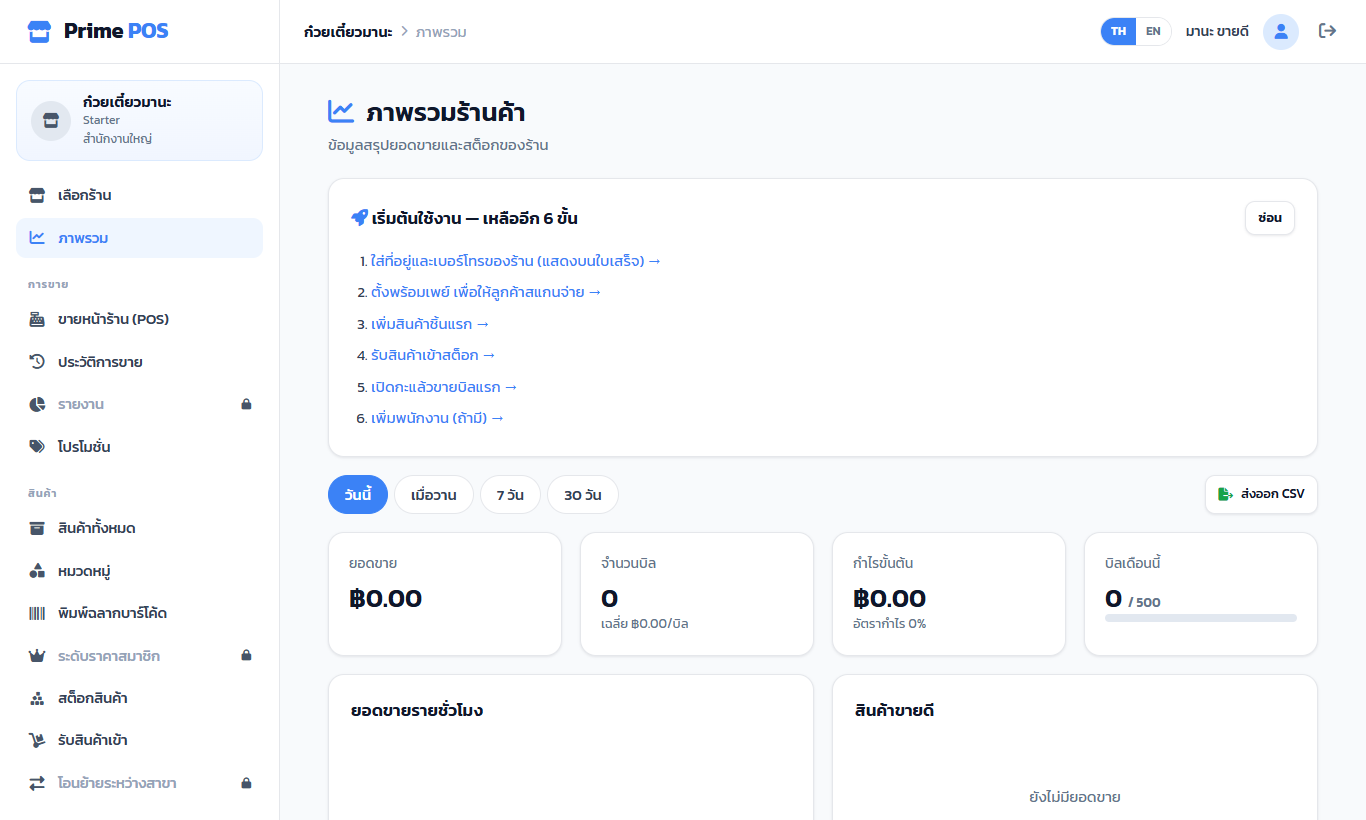
Dashboard shows sales, bills, gross profit and this month's bill quota for today, yesterday, 7 or 30 days, with an hourly chart and best sellers.
A new shop gets a Getting started box listing what to do next — address and phone, PromptPay, the first product, receiving stock, opening a shift and the first sale, adding staff. Each line takes you there.
The menu#
| Group | Items |
|---|---|
| Sales | POS · Order History · Reports · Promotions |
| Products | All Products · Categories · Print barcode labels · Price Tiers · Inventory · Stock In · Transfers |
| Relationships | Customers & points · Member levels · Suppliers |
| Manage | Staff & roles · Shop settings · Support · Package |
Items with a lock 🔒 belong to a bigger package (reports, customers, several branches …); they open the Package page so you can see what each package includes. Staff only see what their role allows.
On a phone, ☰ (top left) opens the menu. Every table shows one card per row — no sideways scrolling.
Thai / English#
TH / EN at the top right switches the app's language; the device remembers it. Your own data (product and customer names) shows as you typed it.
My account#
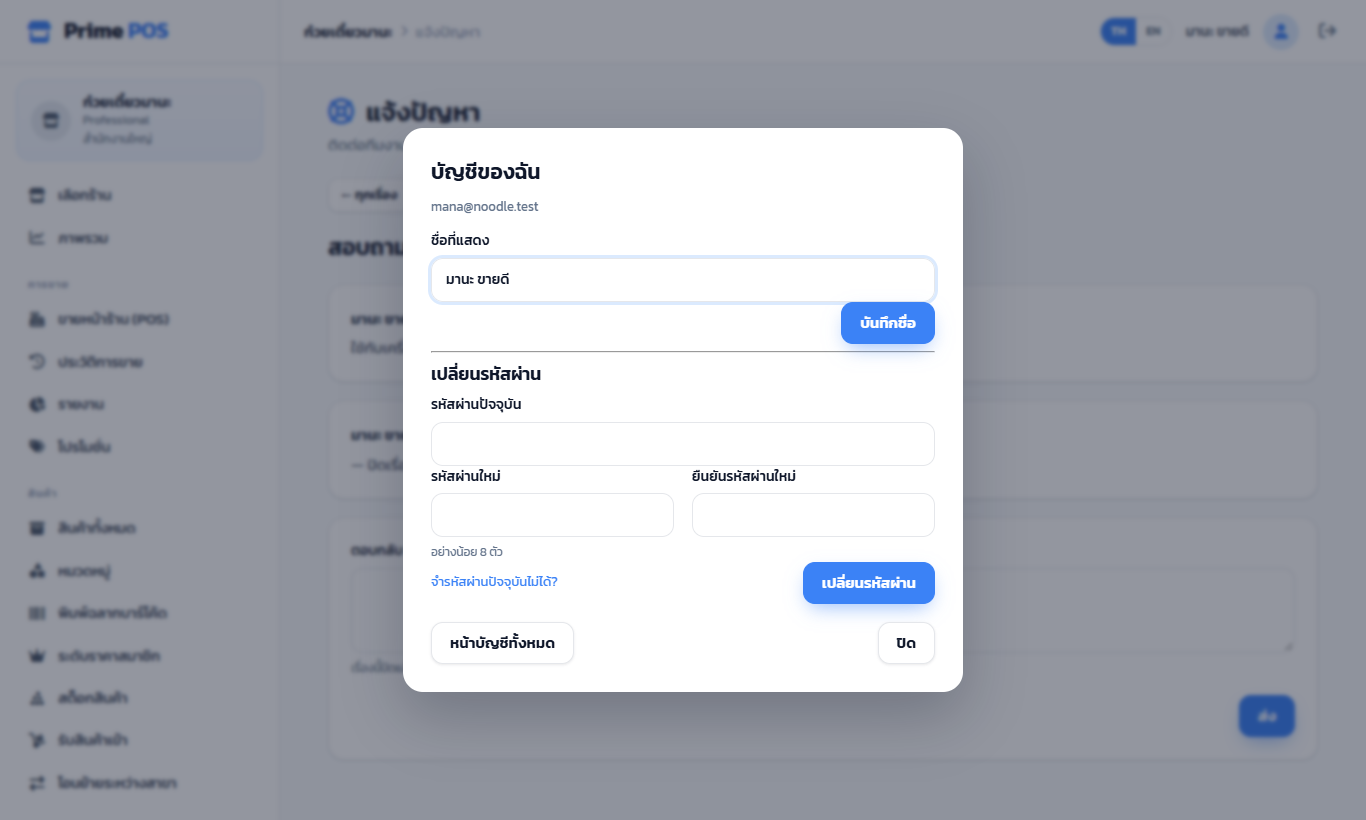
The person icon at the top right opens My account:
- Display name — shown on bills and in staff reports. Change it and press Save name.
- Change password — the current password, then the new one twice. Every other device signed in to your account is signed out at once (this one stays signed in).
- Full account page — the site's account page, with ← Back to the app.
The arrow next to it is Sign out.
Forgot your password#
On the sign-in page press Forgot password?, enter your e-mail and press Send link. Open the link within one hour to set a new password.
If the page says this site cannot send e-mail yet, contact the team (see Support or the contact form on the home page) to reset it for you.