
Shop and products
Products, categories and barcode labels
Add categories and products, options such as sizes, prices per customer tier, import and export with CSV, and print barcode labels
On this page
Categories#
Categories → Add category, name it (Drinks, Bakery …) and save. Categories group the buttons on the selling screen, appear in reports, and can carry a promotion.
Add a product#
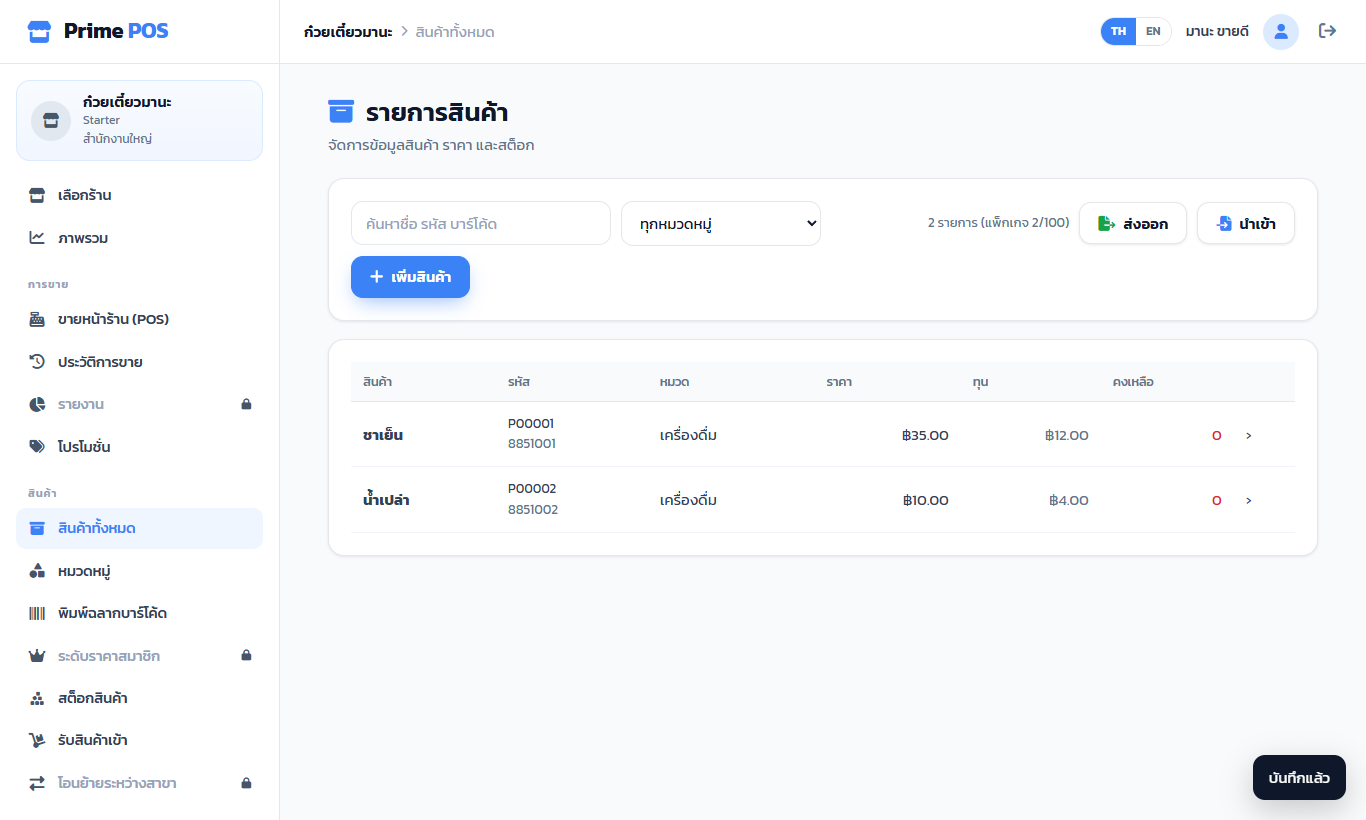
All Products → Add product
| Field | What for |
|---|---|
| Name * | Shown on the button and the receipt |
| Category | Grouping |
| SKU | Leave empty to get one (P00001 …); unique in the shop |
| Barcode | Scan it on the selling screen and the product goes into the cart |
| Unit | piece / cup / box |
| Product picture | Upload / take a photo from the device or the phone's camera — cropped square and made small for you (or paste a picture link https://…), then Save |
| Price * and cost | The cost gives the profit in reports |
| Alert when stock ≤ | Below this the stock badge turns yellow and the product is in the Low stock part of the daily mail |
| Track stock | Turn off for things that are not counted, e.g. a service |
| On sale | Off = not on the selling screen (old bills keep it) |
Options (size / flavour)#
Tick Use options and add rows such as Hot / Iced / Frappé, each with its own price, cost and code. On the selling screen a window asks which one; stock is kept per option.
Prices per customer tier#
Price Tiers creates tiers such as VIP or Wholesale; enter their prices on the product. A customer with that tier gets the price automatically once chosen at the till.
Import and export (CSV)#
All Products has Export (a CSV for Excel) and Import — download the sample, edit it in Excel or Google Sheets and upload it. Products with the same code are updated, new ones added; the result lists what was added, updated and which lines failed.
Print barcode labels#
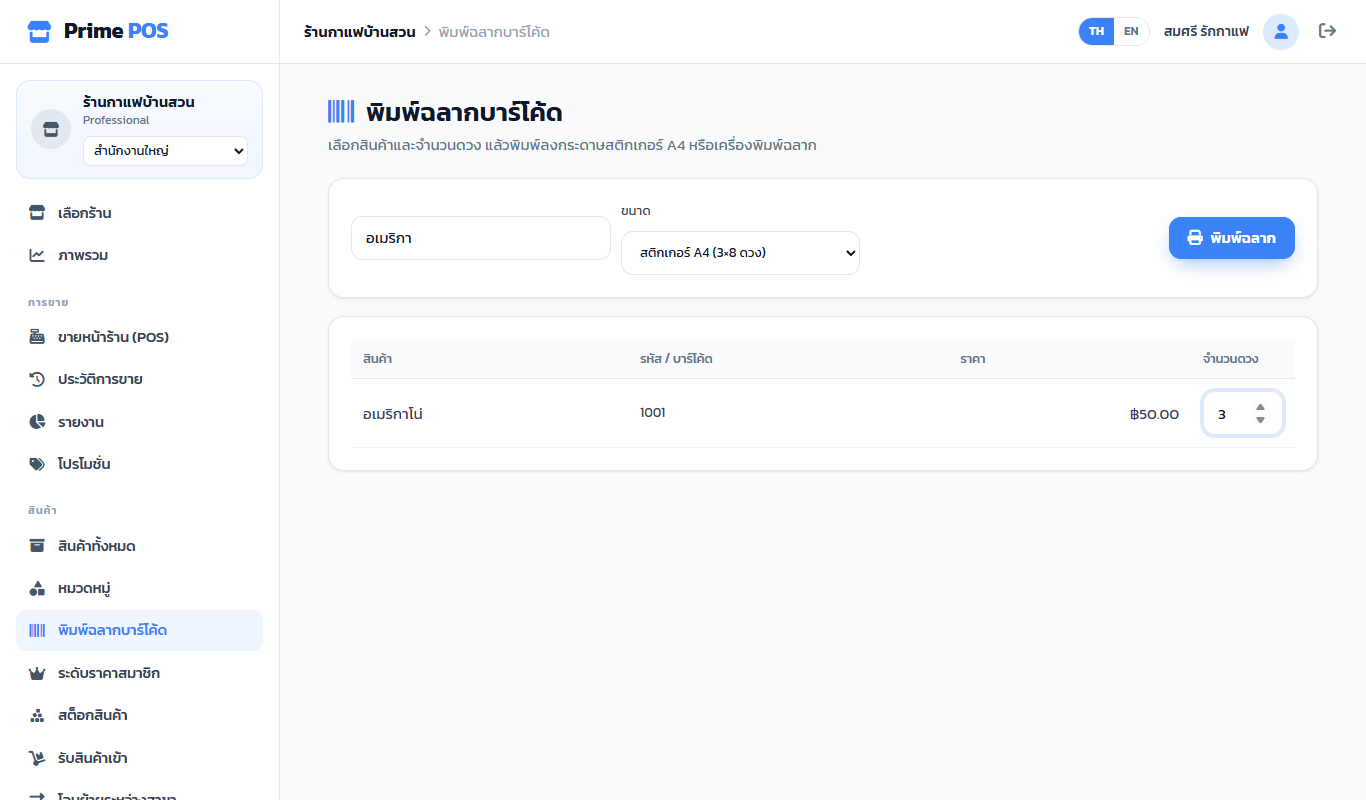
Print barcode labels
- Find the products and enter how many labels of each.
- Choose the size — A4 sticker sheet (3×8) or Label printer 50×30 mm.
- Press Print labels; the browser's print window opens.
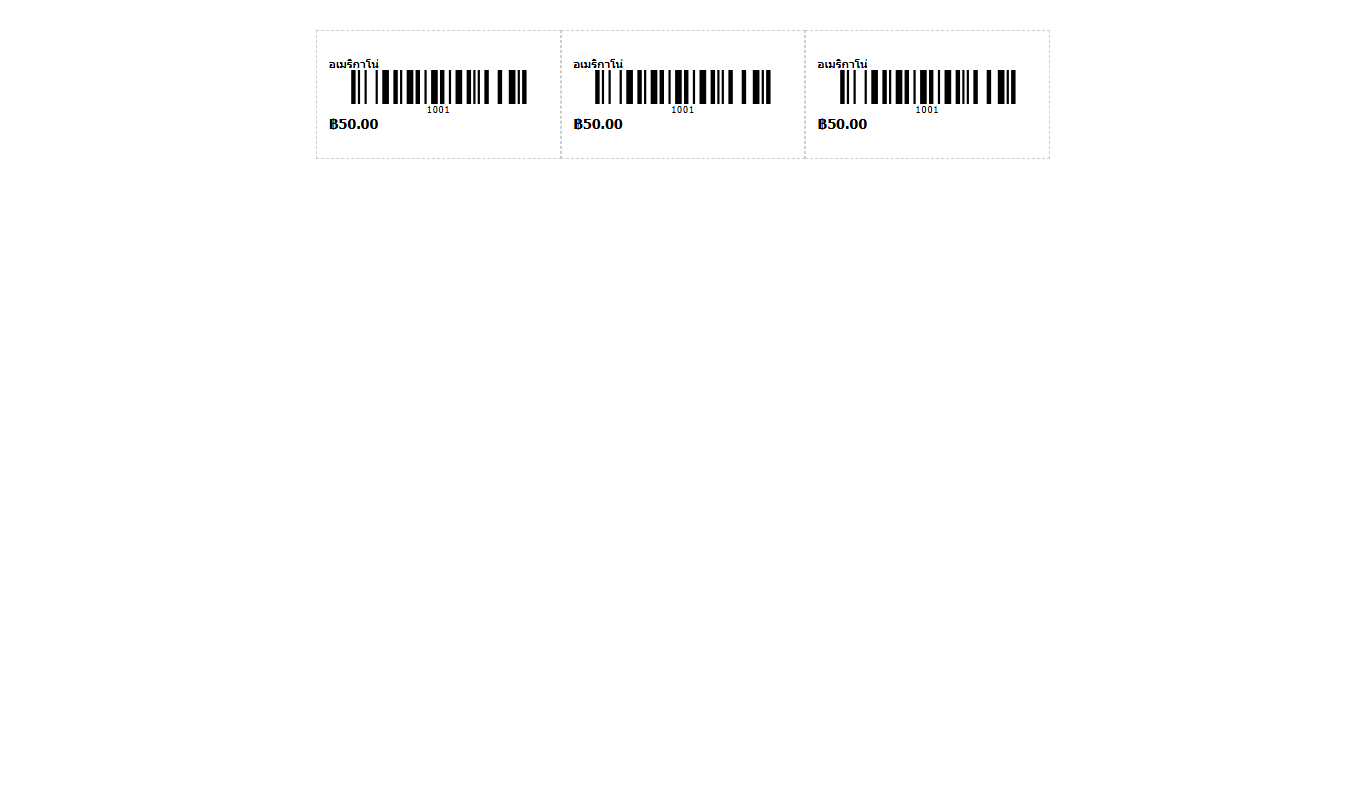
Each label has the name, a Code 128 barcode (any scanner reads it), the code and the price. Products without a barcode or code cannot be printed — add one on the product first.
When printing, choose the real paper size and set margins to "None" or "Default" as your printer needs. Print one sheet first.
Products per package#
Each package has a maximum number of products (Starter: 100). The Package page shows how many you use.